Annotated grep Examples
grep allows us to find lines containing specific expressions within files. In the Linux world, where many values are stored in various files, it is a tool that significantly eases our tasks.
In this article, we will look at some grep options that can be useful in everyday situations.
Example 1: SSH Server Port Number
To see the port number on which our SSH server is running, we will use grep to search for the word "port" in a file. While doing this, we will also touch on a few options.
Usage: grep [options] expression [file(s)]
[root@gnuadmin ~]# grep port /etc/ssh/sshd_config
# If you want to change the port on a SELinux system, you have to tell
# semanage port -a -t ssh_port_t -p tcp #PORTNUMBER
# WARNING: 'UsePAM no' is not supported in Red Hat Enterprise Linux and may cause several
In the above example, we searched for the expression "port" in the file "/etc/ssh/sshd_config". The matching lines were displayed. However, all of them start with the "#" character and are quite verbose sentences. This is not what we're looking for.
Tip - 1
The grep command is case sensitive. If you search for the expression "port", variations like "Port" or "PORT" will be ignored. To remove this case sensitivity, the "-i" option can be used.
Now let's search for the expression "Port":
It looks like we found something. Now let's perform a case-insensitive search:
[root@gnuadmin ~]# grep -i port /etc/ssh/sshd_config
# If you want to change the port on a SELinux system, you have to tell
# semanage port -a -t ssh_port_t -p tcp #PORTNUMBER
#Port 22
# WARNING: 'UsePAM no' is not supported in Red Hat Enterprise Linux and may cause several
#GatewayPorts no
We see a combined result of the two searches. The line "#Port 22" that we found seems to be what we need. However, where exactly is this line in the file?
Tip - 2
To find out which line number in the file contains the line found by grep, the "-n" option can be used.
[root@gnuadmin ~]# grep -in port /etc/ssh/sshd_config
13:# If you want to change the port on a SELinux system, you have to tell
15:# semanage port -a -t ssh_port_t -p tcp #PORTNUMBER
17:#Port 22
94:# WARNING: 'UsePAM no' is not supported in Red Hat Enterprise Linux and may cause several
100:#GatewayPorts no
As can be seen from the output above, the setting that determines the port on which our SSH service will listen is the line 17 in the "/etc/ssh/sshd_config" file, which is "#Port 22".
Example 2: Searching Across Multiple Files
One of the directories where our logs are located in Linux is the "/var/log" directory. This directory contains many files. When specifying file names in grep, you can use a "wildcard". In the following example grep command, we are searching for the expression "error" in the files under the "/var/log" directory:
[root@gnuadmin ~]# grep -i error /var/log/*
grep: /var/log/anaconda: Bir dizin
grep: /var/log/audit: Bir dizin
/var/log/dmesg:[    0.598803] BERT: Boot Error Record Table support is disabled. Enable it by using bert_enable as kernel parameter.
/var/log/dmesg:[    1.526336] [drm:vmw_host_log [vmwgfx]] *ERROR* Failed to send host log message.
/var/log/dmesg:[    1.526953] [drm:vmw_host_log [vmwgfx]] *ERROR* Failed to send host log message.
/var/log/dmesg.old:[    1.032259] BERT: Boot Error Record Table support is disabled. Enable it by using bert_enable as kernel parameter.
/var/log/dmesg.old:[    2.772066] [drm:vmw_host_log [vmwgfx]] *ERROR* Failed to send host log message.
/var/log/dmesg.old:[    2.773353] [drm:vmw_host_log [vmwgfx]] *ERROR* Failed to send host log message.
/var/log/grubby_prune_debug:[1630650982] Error       : Could not find a bootloader configuration to back up
İkilik dosya /var/log/messages eşleşir
grep: /var/log/rhsm: Bir dizin
grep: /var/log/tuned: Bir dizin
Since the grep command searches within files, it ignored the directories under "/var/log". This is because the expression "/var/log/*" passed all files and directories under this path as parameters to grep.
Tip - 3
To extend the search to subdirectories while using grep, the "-r" option can be used.
[root@gnuadmin ~]# grep -ir error /var/log/*
/var/log/anaconda/X.log:    (WW) warning, (EE) error, (NI) not implemented, (??) unknown.
/var/log/anaconda/syslog:06:31:22,587 INFO kernel:BERT: Boot Error Record Table support is disabled. Enable it by using bert_enable as kernel parameter.
/var/log/anaconda/syslog:06:31:25,868 INFO dracut-pre-udev:modprobe: ERROR: could not insert 'floppy': No such device
/var/log/anaconda/syslog:06:31:27,675 ERR kernel:[drm:vmw_host_log [vmwgfx]] *ERROR* Failed to send host log message.
/var/log/anaconda/syslog:06:31:27,703 ERR kernel:[drm:vmw_host_log [vmwgfx]] *ERROR* Failed to send host log message.
/var/log/anaconda/syslog:06:31:33,306 ERR systemd-udevd:ctx=0x558fcbfe63d0 path=/lib/modules/3.10.0-1160.el7.x86_64/kernel/sound/pci/ac97/snd-ac97-codec.ko.xz error=No such file or directory
/var/log/anaconda/syslog:06:31:37,579 ERR multipathd:uevent trigger error
/var/log/anaconda/syslog:06:31:38,403 DEBUG NetworkManager:<debug> [1630650698.4014] keyfile: cannot read directory '/var/run/NetworkManager/system-connections': Error opening directory "/var/run/NetworkManager/system-connections": No such file or directory
[....................................]
As you can see, the expression "error" is also present in some files within "/var/log/anaconda", which was ignored in the previous example because it was a directory.
Example 3: Searching for the Exact Word
By default, the grep command finds every line containing the expression. Let's search for the expression "boot" in the "/var/log/dmesg" file:
[root@gnuadmin ~]# grep -i boot /var/log/dmesg
[    0.000000] Command line: BOOT_IMAGE=/vmlinuz-3.10.0-1160.42.2.el7.x86_64 root=/dev/mapper/centos-root ro crashkernel=auto spectre_v2=retpoline rd.lvm.lv=centos/root rd.lvm.lv=centos/swap rhgb quiet LANG=en_US.UTF-8
[    0.000000] smpboot: Allowing 1 CPUs, 0 hotplug CPUs
[    0.000000] Booting paravirtualized kernel on KVM
[    0.000000] Kernel command line: BOOT_IMAGE=/vmlinuz-3.10.0-1160.42.2.el7.x86_64 root=/dev/mapper/centos-root ro crashkernel=auto spectre_v2=retpoline rd.lvm.lv=centos/root rd.lvm.lv=centos/swap rhgb quiet LANG=en_US.UTF-8
[    0.137422] smpboot: CPU0: Intel(R) Core(TM) i7-6700HQ CPU @ 2.60GHz (fam: 06, model: 5e, stepping: 03)
[    0.232628] smpboot: Max logical packages: 1
[    0.232630] smpboot: Total of 1 processors activated (5183.99 BogoMIPS)
[    0.272717] pci 0000:00:02.0: Boot video device
[    0.598803] BERT: Boot Error Record Table support is disabled. Enable it by using bert_enable as kernel parameter.
Tip - 4
When using grep, the "-w" option can be used to match the whole word.
[root@gnuadmin ~]# grep -iw boot /var/log/dmesg
[    0.272717] pci 0000:00:02.0: Boot video device
[    0.598803] BERT: Boot Error Record Table support is disabled. Enable it by using bert_enable as kernel parameter.
Example 4: Finding the Number of Lines Containing the Expression
Let's assume we want to examine the logs of the "yum" program to find out how many times a package installation was performed. The occurrences of "Installed" in the "/var/log/yum.log" file can help us with this.
[root@gnuadmin ~]# grep Installed /var/log/yum.log
Sep 03 10:06:10 Installed: kernel-3.10.0-1160.41.1.el7.x86_64
Oct 06 22:07:23 Installed: kernel-3.10.0-1160.42.2.el7.x86_64
Oct 06 22:57:30 Installed: wget-1.14-18.el7_6.1.x86_64
Oct 06 23:54:54 Installed: crontabs-1.11-6.20121102git.el7.noarch
Oct 27 22:56:10 Installed: strace-4.24-6.el7.x86_64
Dec 23 00:55:20 Installed: net-tools-2.0-0.25.20131004git.el7.x86_64
Fortunately, the number of lines in our output is small. However, this may not always be the case.
Tip - 5
By adding the "-c" option to the grep command, you can find out how many lines contain the expression you're searching for.
Example 5: Searching for Multiple Words
Tip - 6
When using grep, to search for expressions containing multiple words, you can enclose the expression in double quotes.
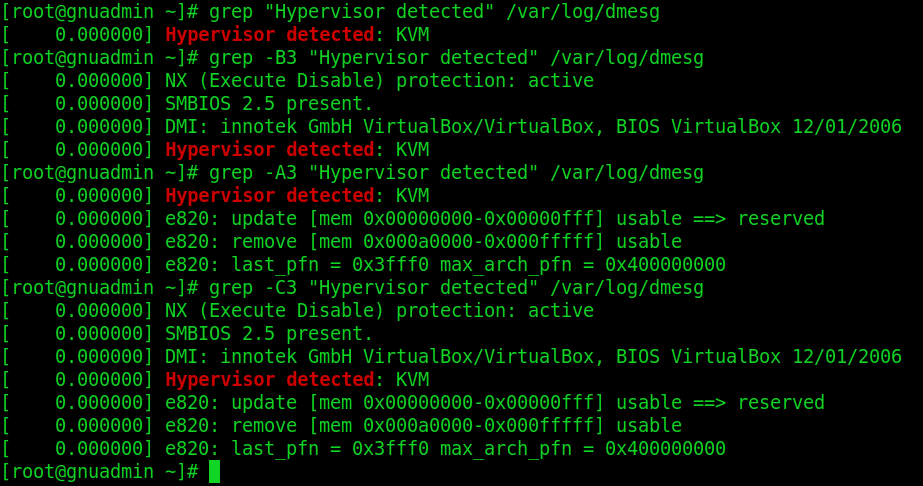
In the following example, we are searching for lines containing "Hypervisor detected" in the "/var/log/dmesg" file:
Example 6: Lines Before and After the Matching Line
Sometimes, you may want to see the lines before and/or after the lines where your expression matches.
Tip - 7
When using grep, you can use the "-An" option to get the n lines after the matching line. For previous lines, use "-Bn", and for both previous and subsequent lines, use "-Cn".
In the following example, we are searching for the expression "Hypervisor detected" within the "/var/log/dmesg" file. First, we search for this expression. Then, we retrieve the 3 lines before the matching line, followed by the 3 lines after the matching line. Finally, we get both the 3 lines before and the 3 lines after the matching line.
[root@gnuadmin ~]# grep "Hypervisor detected" /var/log/dmesg
[    0.000000] Hypervisor detected: KVM
[root@gnuadmin ~]# grep -B3 "Hypervisor detected" /var/log/dmesg
[ 0.000000] NX (Execute Disable) protection: active
[ 0.000000] SMBIOS 2.5 present.
[ 0.000000] DMI: innotek GmbH VirtualBox/VirtualBox, BIOS VirtualBox 12/01/2006
[ 0.000000] Hypervisor detected: KVM
[root@gnuadmin ~]# grep -A3 "Hypervisor detected" /var/log/dmesg
[ 0.000000] Hypervisor detected: KVM
[ 0.000000] e820: update [mem 0x00000000-0x00000fff] usable ==> reserved
[ 0.000000] e820: remove [mem 0x000a0000-0x000fffff] usable
[ 0.000000] e820: last_pfn = 0x3fff0 max_arch_pfn = 0x400000000
[root@gnuadmin ~]# grep -C3 "Hypervisor detected" /var/log/dmesg
[ 0.000000] NX (Execute Disable) protection: active
[ 0.000000] SMBIOS 2.5 present.
[ 0.000000] DMI: innotek GmbH VirtualBox/VirtualBox, BIOS VirtualBox 12/01/2006
[ 0.000000] Hypervisor detected: KVM
[ 0.000000] e820: update [mem 0x00000000-0x00000fff] usable ==> reserved
[ 0.000000] e820: remove [mem 0x000a0000-0x000fffff] usable
[ 0.000000] e820: last_pfn = 0x3fff0 max_arch_pfn = 0x400000000
Example 7: Searching by the Beginning or End of a Line
To find lines that start or end with a specific expression, we can use regular expressions. In the following example, we are retrieving lines that start with "/dev" in the "/etc/fstab" file:
[root@gnuadmin ~]# grep ^/dev /etc/fstab
/dev/mapper/centos-root /                       ext4    defaults        1 1
/dev/mapper/centos-swap swap                    swap    defaults        0 0
Similarly, we can also retrieve lines that end with a specific expression. For example, in the "/etc/fstab" file, lines where the last column is "zero (0)" indicate areas that are not to be checked by the fsck program during boot.
Important: This is not the only option that causes the fsck program to behave this way. Therefore, the output you get with this command may not list all the areas you want fsck to ignore.
Example 8: Searching for Multiple Expressions Simultaneously
Sometimes you might want to see all lines in a file that contain different words.
For example, let's search for shell definitions in the "/etc/passwd" file. Suppose we want to list users whose shells are defined as "bash", "halt", and "shutdown".
Tip - 8
When using the grep command to search with multiple expressions, the "-e" option can be used.