WordPress Installation on CentOS 7
In this post, I will try to explain the installation of WordPress, which is an indispensable example of self-hosted trials. The installation will be carried out on a virtual CentOS 7 system. I will do my best to uncover any potential issues we might encounter and will persistently attempt to resolve errors :)
Today, we'll install an application that you can typically set up with just a few clicks on almost any shared hosting package you purchase; you can even request it to be pre-installed if you rent a virtual server. Our goal is to understand what happens behind the scenes during the software's operation.
On the other hand, if you’re thinking, "Don't make me go through all this trouble; it’s a long article." you can jump directly to the "TL; DR;" section.
Warning
This document is prepared for illustrative purposes for a test environment setup. The responsibility for use in a production environment lies with you.
Prerequisites for This Guide
- A CentOS 7 machine with internet access.
- Root access on the relevant machine.
- Access from your host machine to your guest machine.
- If you are not using virtualization, you can access your site by typing "localhost" or "127.0.0.1" into the web browser of your CentOS 7 device, provided that no other service is using port 80.
- If you are using VirtualBox, you can access your site by typing the IP address obtained through the "Bridged Adapter" into the web browser of your host machine.
- If you are using VirtualBox, you can perform IP and port forwarding using "NAT Network" and "Port Forwarding". This is the method I used while preparing this document. The address "127.0.0.100:8090" is forwarded to port 80 on my guest machine.
Network Modes on VirtualBox
For detailed information about network modes in VirtualBox, you can watch my video.
What is WordPress?
WordPress, is a free and open-source content management system (CMS). It operates on PHP and MySQL. As of May 2019, it is the most widely used content management system in the world, with around 60% of CMS-powered websites using WordPress.1
Prerequisites for WordPress
For WordPress to function on your server, it requires some prerequisites.2
WordPress 5.5.3 needs:
- PHP 7.4 or higher.
- WordPress is an application written in PHP. Without a PHP interpreter on your server, you cannot use WordPress.
- MySQL 5.6 or higher, or MariaDB 10.1 or higher. -WordPress is an application that requires a database and works with MySQL. Since MariaDB is a fork of MySQL, it is also supported.
- HTTPS support.
- The reasons for this are well-known, but HTTPS will not be covered in this article.
- A web server that supports PHP and MySQL.
- As you can imagine, a web server is needed for a web application to function. Although WordPress recommends Apache or Nginx, it can also run on other web servers that support PHP and MySQL. In this guide, we will use Apache.
Let’s get started and see what challenges we might face.
Downloading WordPress
We will download WordPress as a tarball from its official website. Afterward, we’ll extract this tarball. The extracted files will be moved to the directory that will be served by the web server we will set up later.
On WordPress's download page, we see a tarball link with the "*tar.gz" extension.
This link will provide us with the latest version of WordPress. To download it, we will use the "wget" program. If wget is not installed, you can install it using "yum install wget", or you can use another tool, such as "curl".
[root@localhost ~]# wget https://wordpress.org/latest.tar.gz
After the download is complete, we will extract the tarball:
tar -xzf latest.tar.gz
As a result of these steps, we will have the WordPress archive and its extracted files, as shown below:
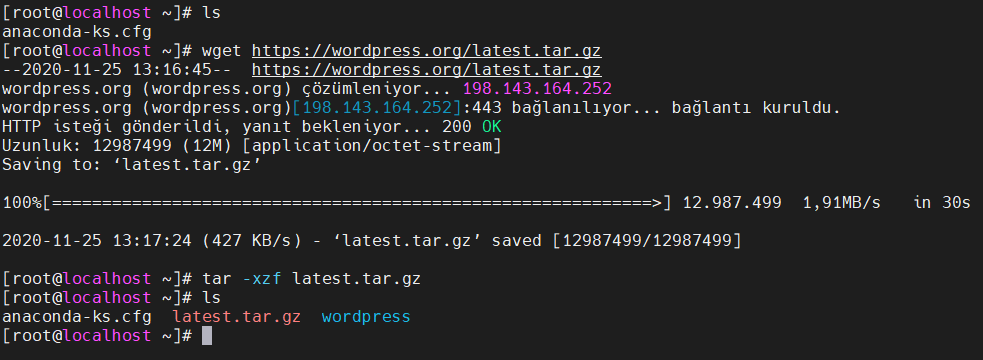
At this point, we have downloaded the WordPress files but haven't performed any installation yet. We need to complete the prerequisites for installation, starting with MariaDB.
Installing MariaDB
MariaDB, a fork of the MySQL project, emerged after MySQL was acquired.3 Many people turned to MariaDB to avoid certain pressures associated with MySQL. A similar situation occurred with Open Office and LibreOffice, with Oracle again playing a leading role :)
MariaDB is already available in the CentOS 7 repositories we are using, but the version is not up-to-date. Besides being outdated, it is also not one of the versions recommended by WordPress:
[root@localhost ~]# yum provides "mariadb"
Yüklü eklentiler: fastestmirror
Loading mirror speeds from cached hostfile
 * base:
 * extras:
 * updates:
1:mariadb-5.5.68-1.el7.x86_64 : A community developed branch of MySQL
Depo        : base
[root@localhost ~]# yum provides "mariadb-server"
Yüklü eklentiler: fastestmirror
Loading mirror speeds from cached hostfile
 * base:
 * extras:
 * updates:
1:mariadb-server-5.5.68-1.el7.x86_64 : The MariaDB server and related files
Depo        : base
As seen from the output above, the version of MariaDB available in the CentOS 7 repositories is 5.5.68. However, we need at least version 10.1. To obtain this version, you can visit the official MariaDB page or use alternative methods.
[root@localhost ~]# curl -LsS https://downloads.mariadb.com/MariaDB/mariadb_repo_setup | bash
[info] Repository file successfully written to /etc/yum.repos.d/mariadb.repo
[info] Adding trusted package signing keys...
[info] Successfully added trusted package signing keys
[root@localhost ~]# cat /etc/yum.repos.d/mariadb.repo
[mariadb-main]
name = MariaDB Server
baseurl = https://downloads.mariadb.com/MariaDB/mariadb-10.5/yum/rhel/$releasever/$basearch
gpgkey = file:///etc/pki/rpm-gpg/MariaDB-Server-GPG-KEY
gpgcheck = 1
enabled = 1

[mariadb-maxscale]
# To use the latest stable release of MaxScale, use "latest" as the version
# To use the latest beta (or stable if no current beta) release of MaxScale, use "beta" as the version
name = MariaDB MaxScale
baseurl = https://dlm.mariadb.com/repo/maxscale/latest/centos/$releasever/$basearch
gpgkey = file:///etc/pki/rpm-gpg/MariaDB-MaxScale-GPG-KEY
gpgcheck = 1
enabled = 1

[mariadb-tools]
name = MariaDB Tools
baseurl = https://downloads.mariadb.com/Tools/rhel/$releasever/$basearch
gpgkey = file:///etc/pki/rpm-gpg/MariaDB-Enterprise-GPG-KEY
gpgcheck = 1
enabled = 1
We executed two commands above, one of which is curl. curl is a tool used for transferring data with URLs.
- -L: Location. If the URL has been redirected to a new location, follow the redirect.
- -s: Silent. Operate silently without producing output.
- -S: Show error. If -s is used and an error occurs, display the error messages.
The URL after curl points to a bash script. We pipe the entire script to "bash" for execution. This script adds the MariaDB repositories to your system. If you prefer to download the script instead of executing it directly, you can use "curl -LO" instead of "curl -LsS".
Our second command was cat. We used it to examine the contents of the file placed in the repositories. Now that the repository is ready, we can proceed with the package installation.
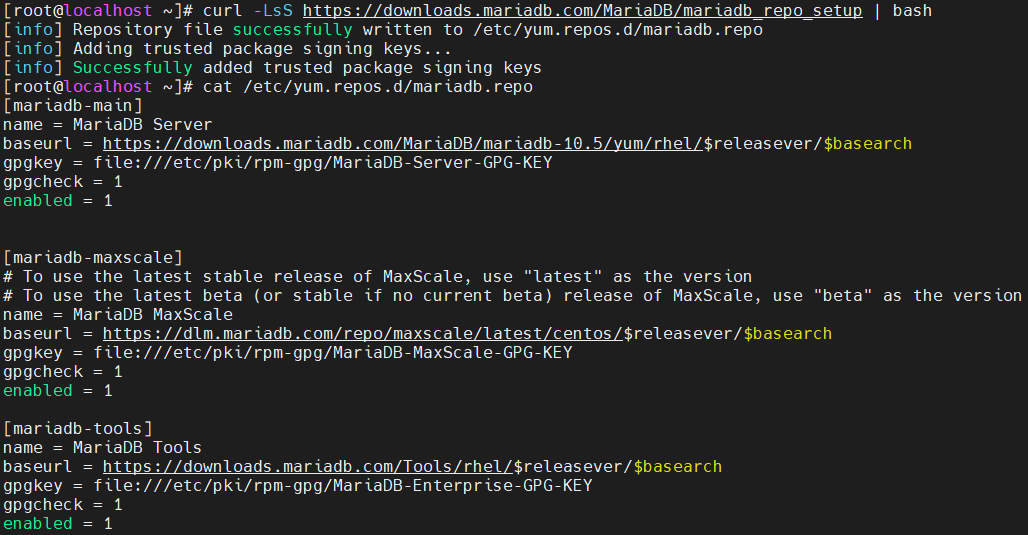
For MariaDB to function efficiently, it is recommended to install three packages: the database server, the database client, and the backup package.
[root@localhost ~]# yum install MariaDB-server MariaDB-client MariaDB-backup
As a result of this process, you should see output similar to the following:
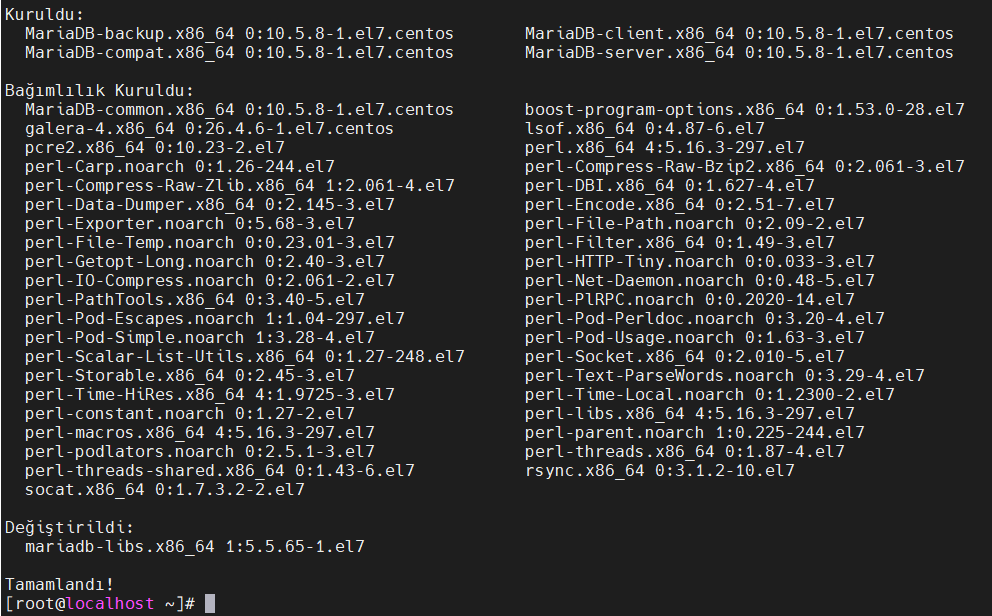
We can see that the backup, compat(ibility?), client, and server packages have been installed, along with some necessary dependencies. The previously existing "mariadb-libs" package has been updated.
Another point to note during the installation is that MariaDB provides some information before verifying the installed packages:
Two all-privilege accounts were created.
One is root@localhost, it has no password, but you need to
be system 'root' user to connect. Use, for example, sudo mysql
The second is mysql@localhost, it has no password either, but
you need to be the system 'mysql' user to connect.
After connecting you can set the password, if you would need to be
able to connect as any of these users with a password and without sudo

See the MariaDB Knowledgebase at https://mariadb.com/kb or the
MySQL manual for more instructions.

Please report any problems at https://mariadb.org/jira

The latest information about MariaDB is available at https://mariadb.org/.
You can find additional information about the MySQL part at:
https://dev.mysql.com
Consider joining MariaDB's strong and vibrant community:
https://mariadb.org/get-involved/
From this information, we can understand the following: the "root@localhost" account has been created, but it has no password. However, to log in, we need to be "root." What does this mean? The "root@localhost" user is an account on the MariaDB database server located at "localhost," whereas the "root" user is the account on our CentOS 7 device. The same applies to the "mysql@localhost" and "mysql" users.
In this section, we have only added the repositories and installed the packages. For a more detailed examination of the process, I recommend reviewing MariaDB's own documentation.4
Starting MariaDB Service
To use the MariaDB service, you need to start the service. If you want the service to start automatically when your device restarts, you need to enable it.
Examine the following output and screenshot. When the service is in the "inactive" state, we cannot connect to the database. The commands we used are:
- mysql: Connecting to the database server. Since we are currently logged in as root, we can directly switch to the database server.
- systemctl status mariadb: Status of MariaDB service.
- systemctl enable mariadb: As explained above, it is necessary to ensure that the service starts automatically after a reboot.
- systemctl start mariadb: Start MariaDB service.
In addition, keep in mind the commands "systemctl stop mariadb" and "systemctl restart mariadb". As you might guess, these commands are used to stop and restart the service, respectively.
[root@localhost ~]# mysql
ERROR 2002 (HY000): Can't connect to local MySQL server through socket '/var/lib/mysql/mysql.sock' (2)
[root@localhost ~]# systemctl status mariadb
● mariadb.service - MariaDB 10.5.8 database server
   Loaded: loaded (/usr/lib/systemd/system/mariadb.service; disabled; vendor preset: disabled)
  Drop-In: /etc/systemd/system/mariadb.service.d
           └─migrated-from-my.cnf-settings.conf
   Active: inactive (dead)
     Docs: man:mariadbd(8)
           https://mariadb.com/kb/en/library/systemd/
[root@localhost ~]# systemctl enable mariadb
Created symlink from /etc/systemd/system/multi-user.target.wants/mariadb.service to /usr/lib/systemd/system/mariadb.service.
[root@localhost ~]# systemctl start mariadb
[root@localhost ~]# systemctl status mariadb
● mariadb.service - MariaDB 10.5.8 database server
   Loaded: loaded (/usr/lib/systemd/system/mariadb.service; enabled; vendor preset: disabled)
  Drop-In: /etc/systemd/system/mariadb.service.d
           └─migrated-from-my.cnf-settings.conf
   Active: active (running) since Çrş 2020-11-25 14:24:50 +03; 2s ago
     Docs: man:mariadbd(8)
           https://mariadb.com/kb/en/library/systemd/
  Process: 1699 ExecStartPost=/bin/sh -c systemctl unset-environment _WSREP_START_POSITION (code=exited, status=0/SUCCESS)
  Process: 1675 ExecStartPre=/bin/sh -c [ ! -e /usr/bin/galera_recovery ] && VAR= ||   VAR=`cd /usr/bin/..; /usr/bin/galera_recovery`; [ $? -eq 0 ]   && systemctl set-environment _WSREP_START_POSITION=$VAR || exit 1 (code=exited, status=0/SUCCESS)
  Process: 1673 ExecStartPre=/bin/sh -c systemctl unset-environment _WSREP_START_POSITION (code=exited, status=0/SUCCESS)
 Main PID: 1686 (mariadbd)
   Status: "Taking your SQL requests now..."
   CGroup: /system.slice/mariadb.service
           └─1686 /usr/sbin/mariadbd

Kas 25 14:24:50 localhost.localdomain mariadbd[1686]: 2020-11-25 14:24:50 0 [Note] InnoDB: 10.5.8...20
Kas 25 14:24:50 localhost.localdomain mariadbd[1686]: 2020-11-25 14:24:50 0 [Note] Plugin 'FEEDBA...d.
Kas 25 14:24:50 localhost.localdomain mariadbd[1686]: 2020-11-25 14:24:50 0 [Note] InnoDB: Loadin...ol
Kas 25 14:24:50 localhost.localdomain mariadbd[1686]: 2020-11-25 14:24:50 0 [Note] InnoDB: Buffer...50
Kas 25 14:24:50 localhost.localdomain mariadbd[1686]: 2020-11-25 14:24:50 0 [Note] Server socket ...'.
Kas 25 14:24:50 localhost.localdomain mariadbd[1686]: 2020-11-25 14:24:50 0 [Note] Reading of all...ed
Kas 25 14:24:50 localhost.localdomain mariadbd[1686]: 2020-11-25 14:24:50 0 [Note] Added new Mast...le
Kas 25 14:24:50 localhost.localdomain mariadbd[1686]: 2020-11-25 14:24:50 0 [Note] /usr/sbin/mari...s.
Kas 25 14:24:50 localhost.localdomain mariadbd[1686]: Version: '10.5.8-MariaDB'  socket: '/var/li...er
Kas 25 14:24:50 localhost.localdomain systemd[1]: Started MariaDB 10.5.8 database server.
Hint: Some lines were ellipsized, use -l to show in full.
[root@localhost ~]# mysql
Welcome to the MariaDB monitor.  Commands end with ; or \g.
Your MariaDB connection id is 3
Server version: 10.5.8-MariaDB MariaDB Server

Copyright (c) 2000, 2018, Oracle, MariaDB Corporation Ab and others.

Type 'help;' or '\h' for help. Type '\c' to clear the current input statement.

MariaDB [(none)]>
For more detailed information, you can refer to the MariaDB documentation.5
Securing MariaDB Installation
Certainly, we can't say our ""MariaDB installation is secure"" just by running a single script...
There is a shell script called mariadb-secure-installation6 that helps us remove some default settings, accounts, and databases after installation.
After running this script, we do the following:
- It queries the security of the root@localhost account. If your root account (at CentOS) is already secured and MariaDB is configured such that only the system root can act as the database root—remember, the default setting was already this, you can choose "n" for the unix_socket and root password change prompts.
- We remove anonymous users.
- We disable remote access for root@localhost.
- We delete the test database.
- We update the privilege table to apply changes immediately.
[root@localhost ~]# file $(which mariadb-secure-installation )
/usr/bin/mariadb-secure-installation: POSIX shell script, ASCII text executable
[root@localhost ~]# mariadb-secure-installation

NOTE: RUNNING ALL PARTS OF THIS SCRIPT IS RECOMMENDED FOR ALL MariaDB
      SERVERS IN PRODUCTION USE!  PLEASE READ EACH STEP CAREFULLY!

In order to log into MariaDB to secure it, we'll need the current
password for the root user. If you've just installed MariaDB, and
haven't set the root password yet, you should just press enter here.

Enter current password for root (enter for none):
OK, successfully used password, moving on...

Setting the root password or using the unix_socket ensures that nobody
can log into the MariaDB root user without the proper authorisation.

You already have your root account protected, so you can safely answer 'n'.

Switch to unix_socket authentication [Y/n] n
 ... skipping.

You already have your root account protected, so you can safely answer 'n'.

Change the root password? [Y/n] n
 ... skipping.

By default, a MariaDB installation has an anonymous user, allowing anyone
to log into MariaDB without having to have a user account created for
them.  This is intended only for testing, and to make the installation
go a bit smoother.  You should remove them before moving into a
production environment.

Remove anonymous users? [Y/n] y
 ... Success!

Normally, root should only be allowed to connect from 'localhost'.  This
ensures that someone cannot guess at the root password from the network.

Disallow root login remotely? [Y/n] y
 ... Success!

By default, MariaDB comes with a database named 'test' that anyone can
access.  This is also intended only for testing, and should be removed
before moving into a production environment.

Remove test database and access to it? [Y/n] y
 - Dropping test database...
 ... Success!
 - Removing privileges on test database...
 ... Success!

Reloading the privilege tables will ensure that all changes made so far
will take effect immediately.

Reload privilege tables now? [Y/n] y
 ... Success!

Cleaning up...

All done!  If you've completed all of the above steps, your MariaDB
installation should now be secure.

Thanks for using MariaDB!
[root@localhost ~]#
To enhance the security of your MariaDB installation, you can refer to the following documentation.7
Creating a Database for WordPress
Now that our MariaDB server is up and running, we can create the database required for WordPress and set up a user to manage this database. Afterward, we will grant the new user the appropriate permissions on our database. We will give the user full privileges on the database to meet WordPress' requirements.
MariaDB User Creation
Let's proceed with creating a user and a database for WordPress. For this example, we'll use the username "wp_db_user" and the password "dbpassw0rd". It's important to avoid using names that directly reference the application, such as "wordpress" or any variations containing "wp," as these names might suggest a direct association with WordPress. However, since we are in a test environment, we will continue with these details.
First, we generate a password hash, then use this hash to create a user, and finally, we list all users.
- mysql: Open MariaDB CLI.
- SELECT PASSWORD('dbpassw0rd');: Create a hash from dbpassw0rd string.
- CREATE USER wp_db_user@localhost IDENTIFIED BY PASSWORD '*3AA1FAA1EA7983922FDB92DE6F199972B231227A';: Create a user named wp_db_user on the localhost server with a pre-defined password hash.
- SELECT host, user FROM mysql.user;: Display the users on the server and the hosts they can log in from.
[root@localhost ~]# mysql
Welcome to the MariaDB monitor.  Commands end with ; or \g.
Your MariaDB connection id is 11
Server version: 10.5.8-MariaDB MariaDB Server

Copyright (c) 2000, 2018, Oracle, MariaDB Corporation Ab and others.

Type 'help;' or '\h' for help. Type '\c' to clear the current input statement.

MariaDB [(none)]> SELECT PASSWORD('dbpassw0rd');
+-------------------------------------------+
| PASSWORD('dbpassw0rd')                    |
+-------------------------------------------+
| *3AA1FAA1EA7983922FDB92DE6F199972B231227A |
+-------------------------------------------+
1 row in set (0.000 sec)

MariaDB [(none)]> CREATE USER wp_db_user@localhost IDENTIFIED BY PASSWORD '*3AA1FAA1EA7983922FDB92DE6F199972B231227A';
Query OK, 0 rows affected (0.003 sec)

MariaDB [(none)]> SELECT host, user FROM mysql.user;
+-----------+-------------+
| Host      | User        |
+-----------+-------------+
| localhost | mariadb.sys |
| localhost | mysql       |
| localhost | root        |
| localhost | wp_db_user  |
+-----------+-------------+
4 rows in set (0.001 sec)

MariaDB [(none)]>
About SQL Queries
After entering the MariaDB shell, pay attention to the ";" character at the end of SQL queries.
Creating MariaDB Database
We have a simple SQL command to create a database in MariaDB.
- CREATE DATABASE blog_db;: Create a database named "blog_db".
- SHOW DATABASES;: Show databases on server.
MariaDB [(none)]> CREATE DATABASE blog_db;
Query OK, 1 row affected (0.000 sec)

MariaDB [(none)]> SHOW DATABASES;
+--------------------+
| Database           |
+--------------------+
| blog_db            |
| information_schema |
| mysql              |
| performance_schema |
+--------------------+
4 rows in set (0.001 sec)

MariaDB [(none)]>
Granting Permissions to a User on a Database
Here, the topic is to grant a user permissions for all operations on any table within a specific database.
- SHOW GRANTS FOR wp_db_user@localhost;: Shows the permissions for the user "wp_db_user". SELECT PASSWORD('dbpassw0rd');: Generates a hash for the password "dbpassw0rd".
- GRANT ALL PRIVILEGES ON blog_db.* TO wp_db_user@localhost IDENTIFIED BY PASSWORD '*3AA1FAA1EA7983922FDB92DE6F199972B231227A';: Grants all privileges on all tables (*) in the "blog_db" database to the user "wp_db_user" with the specified password hash.
- FLUSH PRIVILEGES;: Clears the privilege cache maintained by MariaDB.
- SHOW GRANTS FOR wp_db_user@localhost;: Displays the updated permissions for the user "wp_db_user".
MariaDB [(none)]> SHOW GRANTS FOR wp_db_user@localhost;
+-------------------------------------------------------------------------------------------------------------------+
| Grants for wp_db_user@localhost                                                                                   |
+-------------------------------------------------------------------------------------------------------------------+
| GRANT USAGE ON *.* TO `wp_db_user`@`localhost` IDENTIFIED BY PASSWORD '*3AA1FAA1EA7983922FDB92DE6F199972B231227A' |
+-------------------------------------------------------------------------------------------------------------------+
1 row in set (0.000 sec)

MariaDB [(none)]> SELECT PASSWORD('dbpassw0rd');
+-------------------------------------------+
| PASSWORD('dbpassw0rd')                    |
+-------------------------------------------+
| *3AA1FAA1EA7983922FDB92DE6F199972B231227A |
+-------------------------------------------+
1 row in set (0.000 sec)

MariaDB [(none)]> GRANT ALL PRIVILEGES ON blog_db.* TO wp_db_user@localhost IDENTIFIED BY PASSWORD '*3AA1FAA1EA7983922FDB92DE6F199972B231227A';
Query OK, 0 rows affected (0.003 sec)

MariaDB [(none)]> FLUSH PRIVILEGES;                                                                   Query OK, 0 rows affected (0.000 sec)

MariaDB [(none)]> SHOW GRANTS FOR wp_db_user@localhost;                                               +-------------------------------------------------------------------------------------------------------------------+
| Grants for wp_db_user@localhost                                                                                   |
+-------------------------------------------------------------------------------------------------------------------+
| GRANT USAGE ON *.* TO `wp_db_user`@`localhost` IDENTIFIED BY PASSWORD '*3AA1FAA1EA7983922FDB92DE6F199972B231227A' |
| GRANT ALL PRIVILEGES ON `blog_db`.* TO `wp_db_user`@`localhost`                                                    |
+-------------------------------------------------------------------------------------------------------------------+
2 rows in set (0.000 sec)

MariaDB [(none)]>
After completing these steps, you will have created a user named "wp_db_user" who can perform all operations on the database named "blog_db". You can exit the MariaDB shell using the "quit" command.
Installing Apache Web Server
As mentioned, we will be using Apache as our web server. There is no special reason for this choice. You can consult comparison charts or application documentation to find web servers that meet your needs.
On CentOS 7, the package used for the Apache web server is named "httpd". Similar to MariaDB, we will need to start and enable the service.8
- yum install httpd
- systemctl start httpd
- systemctl enable httpd
- systemctl status httpd
[root@localhost ~]# yum install httpd
[.......]
Kuruldu:
  httpd.x86_64 0:2.4.6-97.el7.centos

Bağımlılık Kuruldu:
  apr.x86_64 0:1.4.8-7.el7                                apr-util.x86_64 0:1.5.2-6.el7
  httpd-tools.x86_64 0:2.4.6-97.el7.centos                mailcap.noarch 0:2.1.41-2.el7

Tamamlandı!
[root@localhost ~]# systemctl start httpd
[root@localhost ~]# systemctl enable httpd
Created symlink from /etc/systemd/system/multi-user.target.wants/httpd.service to /usr/lib/systemd/system/httpd.service.
[root@localhost ~]# systemctl status httpd
● httpd.service - The Apache HTTP Server
   Loaded: loaded (/usr/lib/systemd/system/httpd.service; enabled; vendor preset: disabled)
   Active: active (running) since Çrş 2020-11-25 17:19:55 +03; 11s ago
[.......]
[root@localhost ~]#
When you try to access your server, you will be greeted with Apache's default page. If you cannot access it, the firewall on CentOS 7 may be blocking the connection.
[root@localhost ~]# systemctl stop firewalld
In this article, we will not discuss topics like "iptables" or the importance of the firewall. You can try disabling the firewall completely using the command above and then attempt to access it.
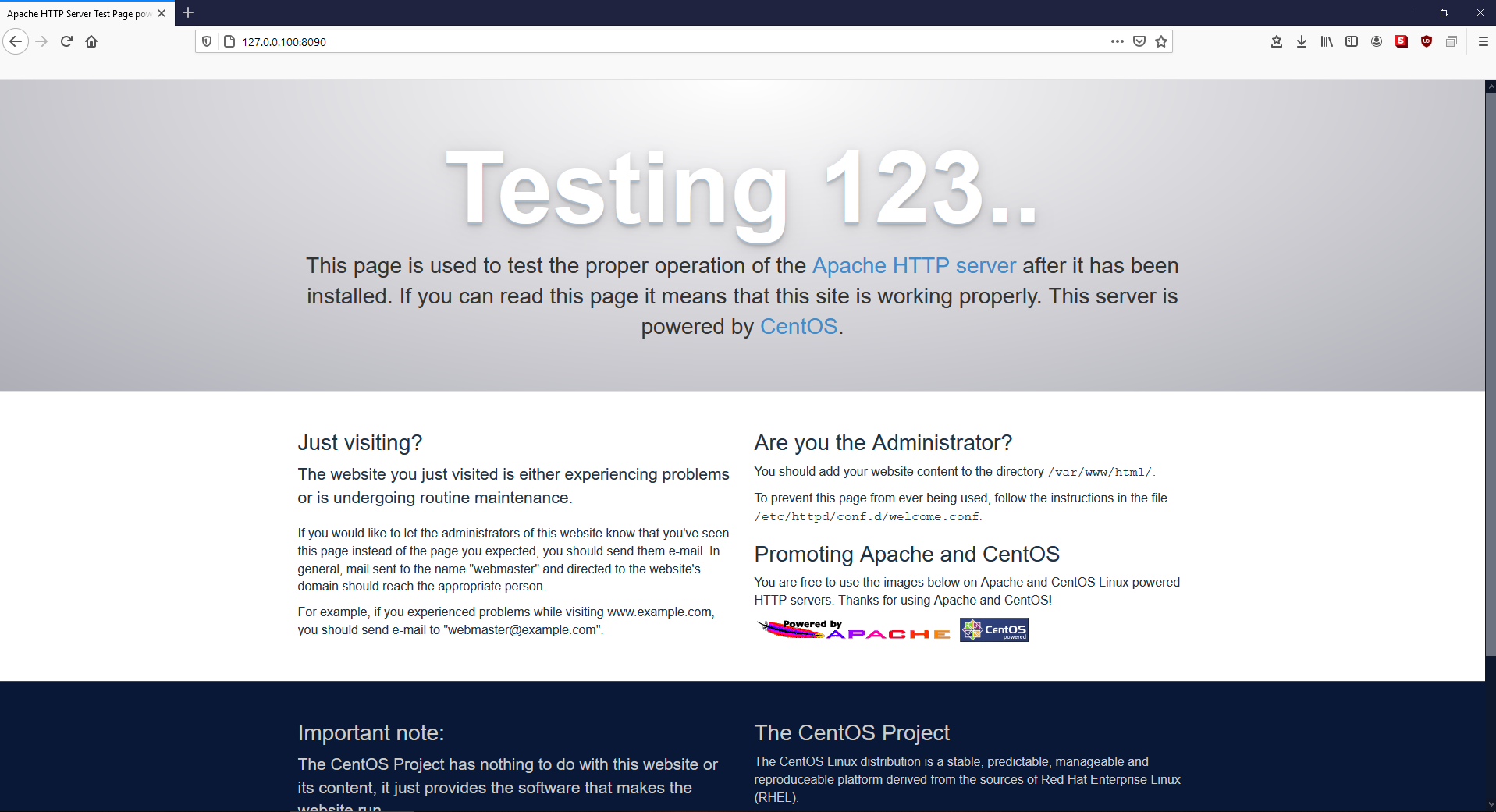
The Apache web server uses the directory "/etc/httpd" and its contents for most of its configurations. The pages we serve are located in the "/var/www/html" directory. These are the default values.
You can find this information on the Internet, read it in the application's documentation, or ask your package manager: What did this package provide? In the list of files, those under /etc will typically be configuration files, while those under /var are more likely to be variable data. However, consulting the documentation is generally more helpful than making such inferences.
[root@localhost ~]# rpm -ql httpd
/etc/httpd
/etc/httpd/conf
/etc/httpd/conf.d
/etc/httpd/conf.d/README
/etc/httpd/conf.d/autoindex.conf
/etc/httpd/conf.d/userdir.conf
/etc/httpd/conf.d/welcome.conf
/etc/httpd/conf.modules.d
[......]
/var/log/httpd
/var/www
/var/www/cgi-bin
/var/www/html
[root@localhost ~]#
Configuring Apache is a separate task. For now, let's set that aside and move on. We have a database server and a web server up and running and ready to go. For now, at least.
PHP Installation
PHP is an interpreted language. It is not compiled. You can write PHP code in a regular text file and run it. However, you need an interpreter to handle the execution of this code in the background.
Similar situations arise with other languages as well. We use web browsers to interpret HTML. We need Python to run Python scripts, and a shell to execute shell scripts.
So, what happens if we don’t install it? Let’s try writing a simple PHP code and serving it from our server:
[root@localhost ~]# echo '<?php echo "Khabib is the G.O.A.T."; ?>' > /var/www/html/test.php
[root@localhost ~]# cat /var/www/html/test.php
<?php echo "Khabib is the G.O.A.T."; ?>
When we go to the browser, we expect to see "Khabib is the G.O.A.T." on the screen. However, this is not the result we get:
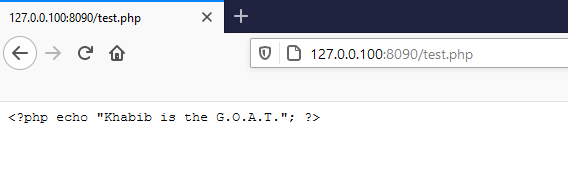
Our PHP code is being displayed directly on the screen instead of being executed, just like a regular text file. Let's try again after installing PHP.
After installing the PHP interpreter, we visit the page again. You might not see any changes due to caching. You can try switching browsers or restarting the "httpd" service. The result will be as follows:
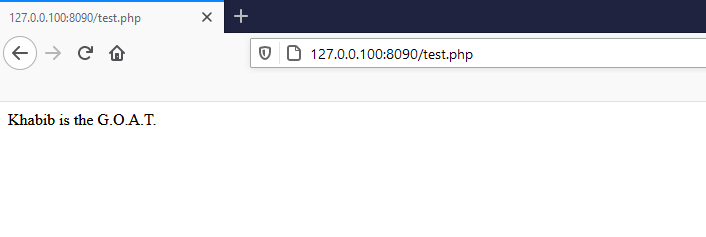
As we can see from here, we have successfully completed the PHP installation. So, we can start running WordPress now... or can we?
WordPress Installation
Since we have prepared the prerequisites, we can now copy the WordPress files to the appropriate directory and start the installation.
- pwd: Shows the current directory. I extracted the "wordpress" archive to the root’s home directory (/root).
- ls: Lists the contents of the current directory. We have confirmed that the "wordpress" directory is here.
- cp -R wordpress/* /var/www/html/: Copy all files and directories from the "wordpress" directory in the current location to "/var/www/html".
- cd /var/www/html: Change to the "/var/www/html" directory.
[root@localhost ~]# pwd
/root
[root@localhost ~]# ls
anaconda-ks.cfg  latest.tar.gz  wordpress
[root@localhost ~]# cp -R wordpress/* /var/www/html/
[root@localhost ~]# cd /var/www/html
[root@localhost html]# ls
index.php    wp-activate.php     wp-comments-post.php  wp-cron.php        wp-load.php   wp-settings.php   xmlrpc.php
license.txt  wp-admin            wp-config-sample.php  wp-includes        wp-login.php  wp-signup.php
readme.html  wp-blog-header.php  wp-content            wp-links-opml.php  wp-mail.php   wp-trackback.php
[root@localhost html]#
If you want to perform the setup yourself, you will need to edit the "wp-config-sample.php" file. This is a separate process.9 We want WordPress to handle this configuration automatically. Of course, it will ask us for some information, but we want it to write the responses to the config file itself. Since I want to see a specific error, we will rename the "wp-config-sample.php" file to "wp-config.php".
[root@localhost html]# mv wp-config-sample.php wp-config.php
Then we visit our website and what we encounter is: "Your server is running PHP version 5.4.16 but WordPress 5.5.3 requires at least 5.6.20."
As you may recall, we saw some version numbers in the prerequisites section. In fact, the reason we dealt with MariaDB repositories instead of just running "yum install mariadb" was due to this. CentOS 7 repositories tend to lag behind with application versions. There are various logical reasons for this, but that's not the topic here, so I won’t go into it.
WordPress specifies a minimum of PHP 5.6.20, but the documentation recommends at least 7.4. We will proceed based on the documentation. This means that, while WordPress will work, there might be inconsistencies, plugin compatibility issues, or theme problems that could arise. These are issues that might not appear today but could show up tomorrow. Therefore, we will upgrade PHP to version 7.4.
Activating the EPEL Repositories
EPEL, which stands for "Extra Packages for Enterprise Linux"; is a package repository. If you want detailed information about this repo, which is closely related to Fedora, you can check out Fedora's official website and the documentation related to EPEL.
[root@localhost html]# yum install epel-release
[......]
Running transaction
  Kuruluyor    : epel-release-7-11.noarch                                                                                   1/1
  Doğrulanıyor : epel-release-7-11.noarch                                                                                   1/1

Kuruldu:
  epel-release.noarch 0:7-11
The "epel-release" package includes the keys for some repositories. After obtaining these keys, we can enable the repository needed for PHP.
- yum install https://rpms.remirepo.net/enterprise/remi-release-7.rpm: Install the Remi repo package.
- yum update: Run this to update the repositories. After the repositories were updated, when it prompted for an update, I chose to reject it by typing "n".
- yum search php: Search for PHP packages. The package we need is php74.
- yum install php74: Install PHP version 7.4.
[root@localhost html]# yum install https://rpms.remirepo.net/enterprise/remi-release-7.rpm
Yüklü eklentiler: fastestmirror
remi-release-7.rpm                                                                                       |  20 kB  00:00:00
[......]
Kuruldu:
  remi-release.noarch 0:7.8-1.el7.remi

Tamamlandı!
[root@localhost html]# yum update
[......]
remi-safe                                                                                                | 3.0 kB  00:00:00
remi-safe/primary_db                                                                                     | 1.8 MB  00:00:06
Bağımlılıklar Çözülüyor
[......]
Kur        1 Paketler (+1 Bağımlı paketler)
Yükselt  131 Paketler

Toplam indirme boyutu: 254 M
Is this ok [y/d/N]: n
[......]
[root@localhost html]# yum search php
[......]
php73-xhprof.noarch : A Hierarchical Profiler for PHP - Web interface
php73-zephir.noarch : Zephir language for creation of extensions for PHP.
php74.x86_64 : Package that installs PHP 7.4
php74-php.x86_64 : PHP scripting language for creating dynamic web sites
php74-php-bcmath.x86_64 : A module for PHP applications for using the bcmath library
[......]
[root@localhost html]# yum install php74
[......]
Kuruldu:
  php74.x86_64 0:1.0-3.el7.remi

[......]

Tamamlandı!
What will happen after performing these steps? Nothing... Because when we run "php" on our system, it still defaults to version 5.4.16. The updated version is accessed using the php74 command. It’s similar to the situation with python and python3, isn’t it?
[root@localhost ~]# php -v
PHP 5.4.16 (cli) (built: Apr  1 2020 04:07:17)
Copyright (c) 1997-2013 The PHP Group
Zend Engine v2.4.0, Copyright (c) 1998-2013 Zend Technologies
[root@localhost ~]# php74 -v
PHP 7.4.13 (cli) (built: Nov 24 2020 10:03:34) ( NTS )
Copyright (c) The PHP Group
Zend Engine v3.4.0, Copyright (c) Zend Technologies
- yum install yum-utils: Install the yum-utils package to use yum-config-manager.
- yum-config-manager --enable remi-php74: Enable the Remi PHP 7.4 repository.
- yum repolist: Update the repository list. This time I used this instead of yum update.
- yum install php: Install PHP without specifying a version number.
- php -v: Display the PHP version.
[root@localhost ~]# yum install yum-utils
[......]
Kuruldu:
  yum-utils.noarch 0:1.1.31-54.el7_8

Bağımlılık Kuruldu:
  libxml2-python.x86_64 0:2.9.1-6.el7.5                    python-chardet.noarch 0:2.2.1-3.el7                    python-kitchen.noarch 0:1.1.1-5.el7

Bağımlılık Güncellendi:
  libxml2.x86_64 0:2.9.1-6.el7.5

Tamamlandı!
[root@localhost ~]# yum-config-manager --enable remi-php74
=========================================================================== repo: remi-php74 ============================================================================
[remi-php74]
[......]
[root@localhost ~]# yum repolist
[......]
remi-php74                                                                                                                                        | 3.0 kB  00:00:00
remi-php74/primary_db                                                                                                                             | 223 kB  00:00:00
[......]
[root@localhost ~]# yum install php
[......]
Bağımlılık Kuruldu:
  libsodium.x86_64 0:1.0.18-1.el7                     php-json.x86_64 0:7.4.13-1.el7.remi                     php-sodium.x86_64 0:7.4.13-1.el7.remi

Güncellendi:
  php.x86_64 0:7.4.13-1.el7.remi

Bağımlılık Güncellendi:
  php-cli.x86_64 0:7.4.13-1.el7.remi                                                php-common.x86_64 0:7.4.13-1.el7.remi

Tamamlandı!
[root@localhost ~]# php -v
PHP 7.4.13 (cli) (built: Nov 24 2020 10:03:34) ( NTS )
Copyright (c) The PHP Group
Zend Engine v3.4.0, Copyright (c) Zend Technologies
So, what about the "php74" we installed earlier? I suggest removing it. After all, we were just trying to install PHP, right? I wanted to give you a bit of a challenge, so I apologize for the inconvenience. :)
[root@localhost ~]# rpm -qa | grep php
php74-php-common-7.4.13-1.el7.remi.x86_64
php-json-7.4.13-1.el7.remi.x86_64
php-sodium-7.4.13-1.el7.remi.x86_64
php74-php-json-7.4.13-1.el7.remi.x86_64
php74-php-cli-7.4.13-1.el7.remi.x86_64
php-common-7.4.13-1.el7.remi.x86_64
php-7.4.13-1.el7.remi.x86_64
php74-runtime-1.0-3.el7.remi.x86_64
php74-1.0-3.el7.remi.x86_64
php-cli-7.4.13-1.el7.remi.x86_64
In the output above, I listed the packages that include PHP. We will remove all packages starting with "php74".
[root@localhost ~]# yum remove php74-php-common php74-php-json php74-php-cli php
PHP MySQL Extension
We have finally managed to install PHP 7.4. Does our work end here? No :)
First, we need to restart Apache and then visit our website again.
[root@localhost ~]# systemctl restart httpd
This time we’re greeted with a new surprise: Your PHP installation appears to be missing the MySQL extension which is required by WordPress.
It turns out our PHP installation is missing the MySQL extension. Let’s install it immediately, and then restart our web server:
Tadaaa! It’s still broken.
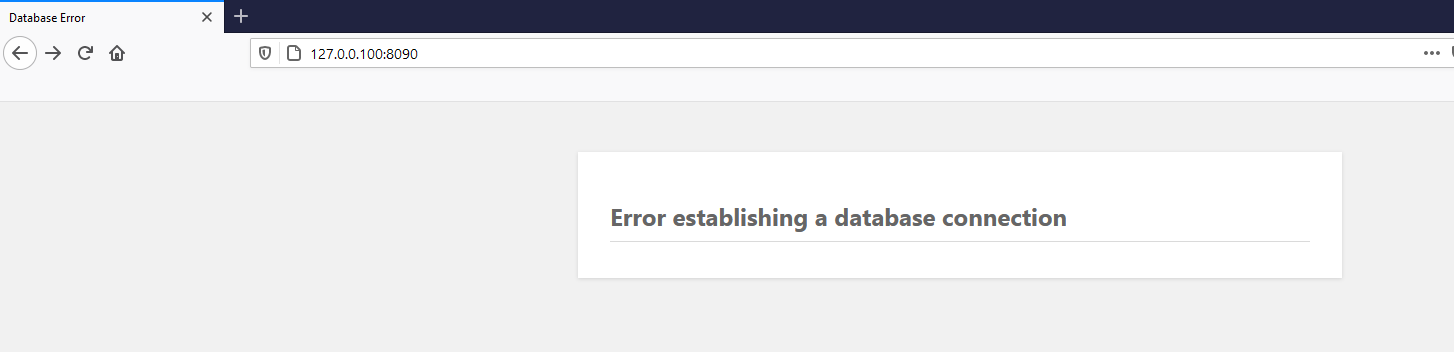
We encountered this error because we had renamed the "wp-config-sample.php" file to "wp-config.php". However, this file did not contain our database connection information. So why did we rename it? If we hadn't, we wouldn't have received the error indicating that we were using the old PHP version (at least I hadn't seen it). I wanted to see that error.
Here’s what we can do: We can fill in the contents of the "wp-config.php" file according to the documentation here. Alternatively, we can rename the file back to "wp-config-sample.php" and let WordPress create the file for us.
[root@localhost ~]# mv /var/www/html/wp-config.php /var/www/html/wp-config-sample.php
After this process, when we access our website, we are greeted with the WordPress installation screen:
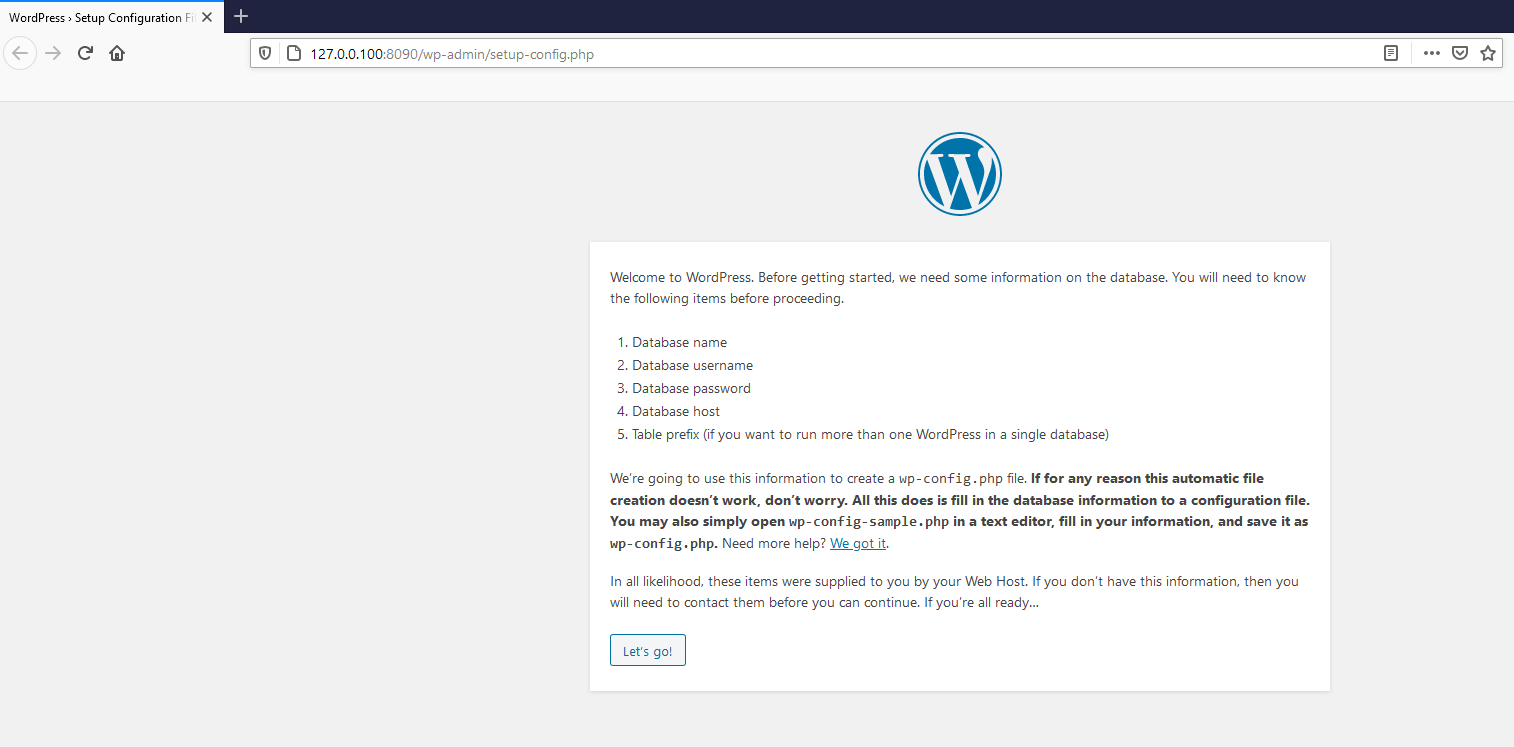
I think we’ve done pretty well to get this far :) Now, let’s proceed with the installation using the information we prepared earlier.
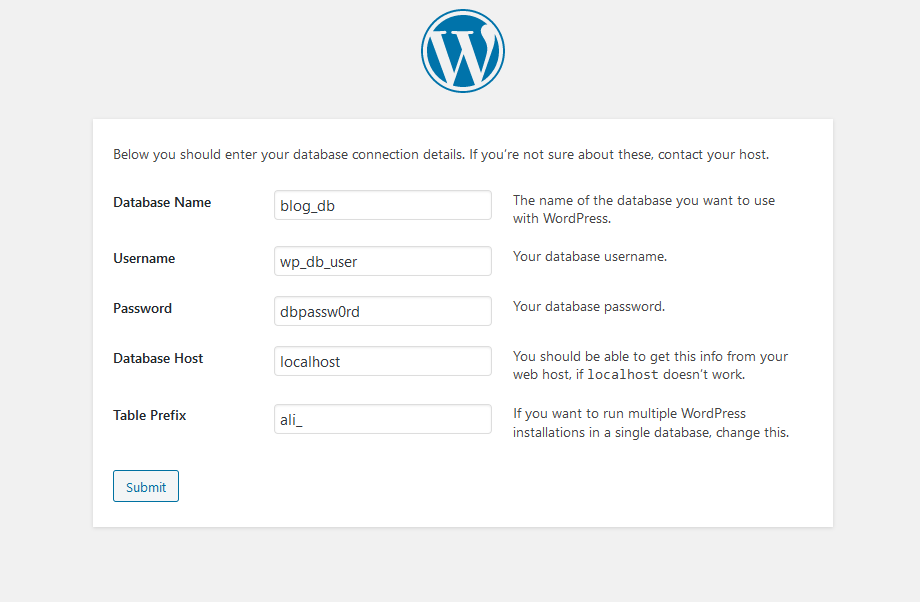
In the next step, we see that the WordPress software was unable to write to the "wp-config.php" file. This issue is related to user management and file permissions, and there is definitely a solution for it. However, this time let's take the easy route and manually write all the content into the "wp-config.php" file as suggested.
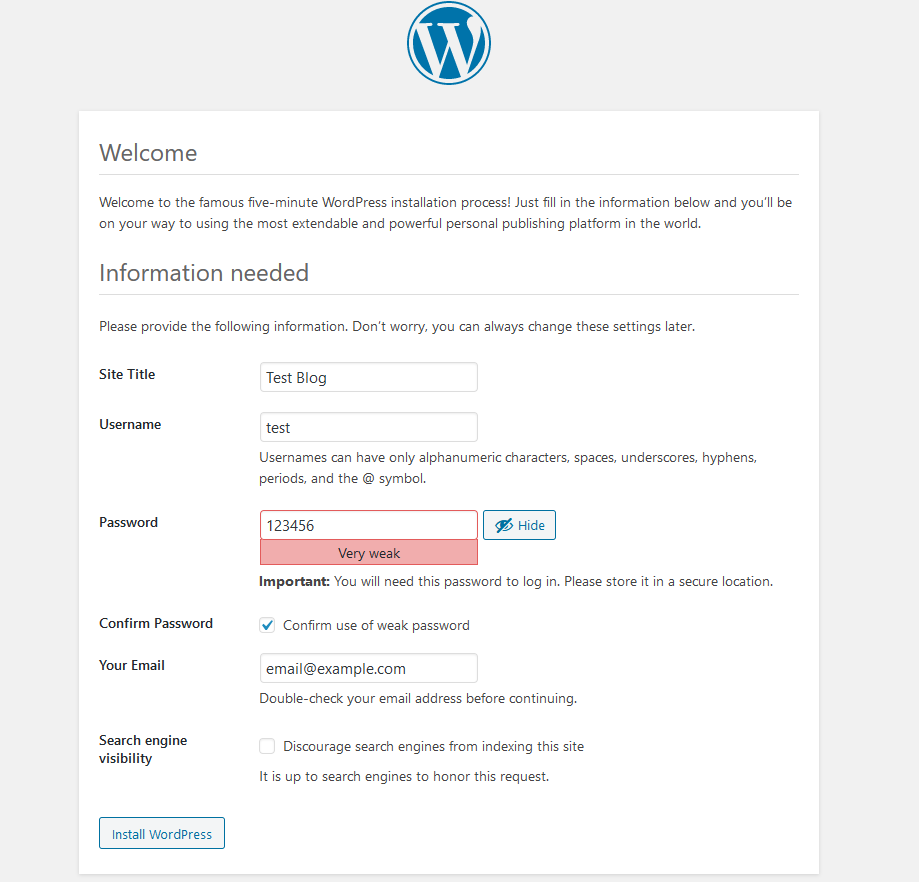
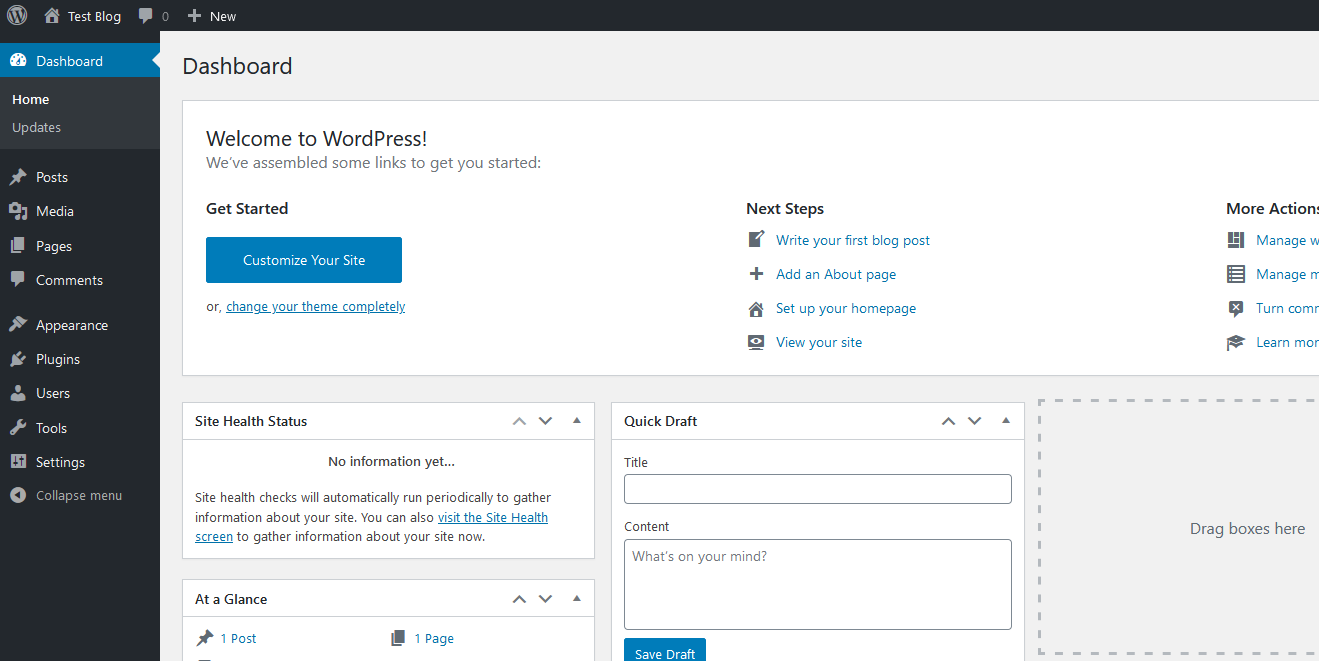
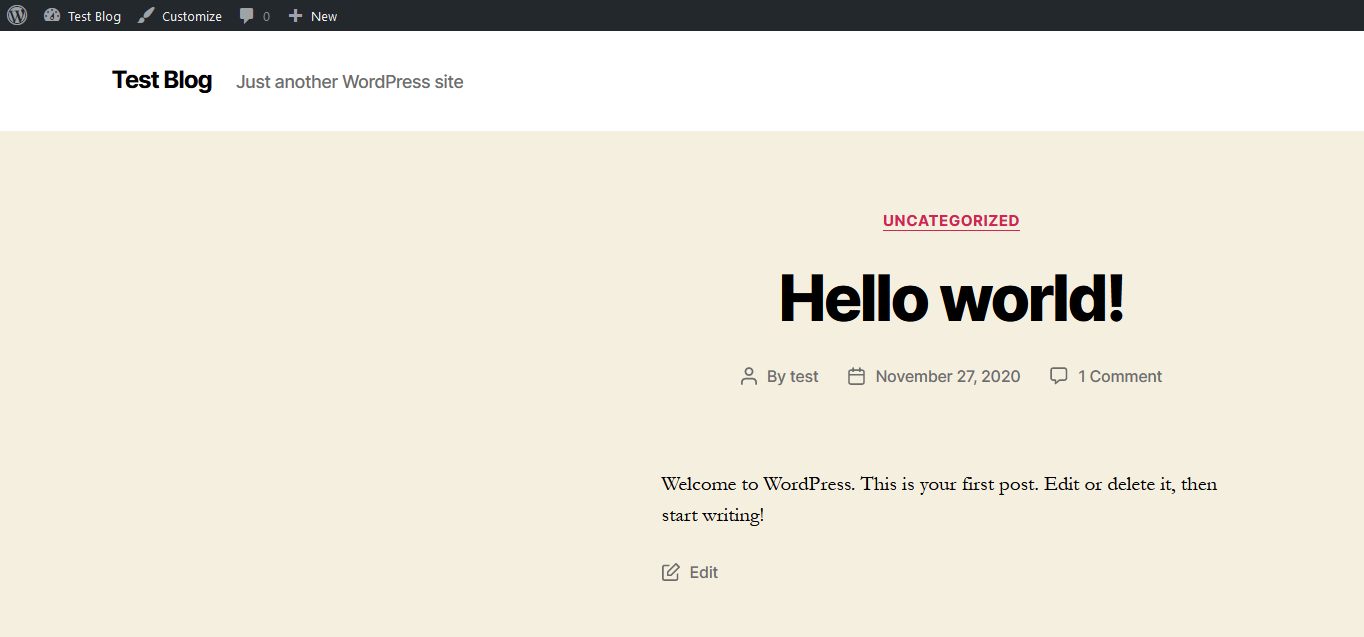
You can use any editor to prepare the "wp-config.php" file. Of course, this file will be located in the "/var/www/html/" directory. After that, you can click the "Run the installation" button. Once you fill out the information on the screen that appears, your WordPress will be ready to use.
As a Result
To be a good system administrator, I believe we must be aware of why we are doing what we are doing. Here are the reasons why I took such a convoluted path for this installation:
- To see the deployment process by dealing with an application's prerequisites and configurations. WordPress installation is relatively simple, but there’s more to it.
- To demonstrate that we can't just install everything by typing "yum install something".
- To emphasize the importance of configuration beyond simply installing a service.
- To show potential errors that might arise.
Here are some points you should definitely not overlook:
- This document is prepared for demonstration purposes in a test environment.
- Almost every service was left with default configurations.
- Particularly with database-related aspects, there might be errors due to my limited experience in these areas.
- This installation raises security concerns due to both stopping the firewall and the ownership and permissions on /var/www/html.
- In such installations, files and directories are often not owned by "root." Instead, a new user is created for the application, and ownership is transferred to that user.
- You should avoid using the "root" user as much as possible. Instead, create a privileged user and use tools like "sudo."
After completing your installation according to this document, you can refer to the official documentation to perform a more robust and reliable installation.
TL; DR;
#Download WordPress
wget https://wordpress.org/latest.tar.gz
#Extract archive:
tar -xzf latest.tar.gz
#Get MariaDB repos:
curl -LsS https://downloads.mariadb.com/MariaDB/mariadb_repo_setup | bash
#Install MariaDB:
yum install MariaDB-server MariaDB-client MariaDB-backup
#Enable and start MariaDB service:
systemctl enable mariadb
systemctl start mariadb
#MariaDB secure installation:
mariadb-secure-installation
#MariaDB shell:
mysql
#Generate a password:
SELECT PASSWORD('parola');
#Create a user:
CREATE USER kullanici@localhost IDENTIFIED BY PASSWORD 'parola_hash';
#Create a database:
CREATE DATABASE veritabani;
#Grant privileges on user:
GRANT ALL PRIVILEGES ON veritabani.* TO kullanici@localhost IDENTIFIED BY PASSWORD 'parola_hash';
#Update privileges:
FLUSH PRIVILEGES;
#Install Apache:
yum install httpd
#Enable and start Apache service:
systemctl start httpd
systemctl enable httpd
#Stop firewall:
systemctl stop firewalld
#Copy WordPress files to Apache directory:
cp -R wordpress/* /var/www/html/
#Install EPEL repos:
yum install epel-release
#Instapp Remi repos:
yum install https://rpms.remirepo.net/enterprise/remi-release-7.rpm
#Install yum-utils:
yum install yum-utils
#Enable Remi PHP 7.4 repo:
yum-config-manager --enable remi-php74
#Update repositories:
yum repolist
#Install PHP and PHP MySQL extension:
yum install php php-mysql
#Restart Apache server:
systemctl restart httpd
Links
-
Overview of WordPress, https://wordpress.org/support/article/overview-of-wordpress/ ↩
-
Requirements, https://wordpress.org/about/requirements/ ↩
-
About MariaDB Server, https://mariadb.org/about/ ↩
-
MariaDB Package Repository Setup and Usage, https://mariadb.com/kb/en/mariadb-package-repository-setup-and-usage/ ↩
-
Starting and Stopping MariaDB, https://mariadb.com/kb/en/starting-and-stopping-mariadb-automatically/ ↩
-
mysql_secure_installation, https://mariadb.com/kb/en/mysql_secure_installation/ ↩
-
Securing MariaDB, https://mariadb.com/kb/en/securing-mariadb/ ↩
-
Compiling and Installing, https://httpd.apache.org/docs/2.4/install.html ↩
-
Editing wp-config.php, https://wordpress.org/support/article/editing-wp-config-php/ ↩