Shell Script #4 - Bash Configuration Files
The GitHub repository with code examples: Shell Scripting 101
The shell, ready to save the day, interprets and runs the commands we give. Our shell has the following features:
- It can run programs. External commands like ls, cat, ps are examples.
- It can run previously defined commands. Internal commands like type, help, echo are examples.
- It is also a programming environment. We can write shell scripts, and we can use loops (like for, while) and decision structures (like if-else).
From this perspective, our shell is really our working environment. Black is the new gold. In this article, we will discuss configuration files that affect the behavior of the "bash" program.
Before starting, it's important to note that we're talking about the "bash" shell. If you're using different shells, you'll likely interact with different files.
When you log into your device, bash runs certain scripts and prepares your working environment. We can divide these scripts into two main categories:
| System-Wide Configuration Files | User-Specific Configuration Files |
|---|---|
| /etc/profile | ~/.bash_profile |
| /etc/bashrc | ~/.bashrc |
| ~/.bash_login | |
| ~/.profile |
Not all of these files need to exist on your system. Some of them can be created by you for different purposes. Now, let's take a look at the contents of these files and try to understand their purposes.
What is the /etc/profile File?
This file is controlled only by the "root" user. It is executed for all users who log in. It is only run in "login shells." I'll give an example of what I mean. Let's first take a look at the content of the file:
[root@localhost ~]# cat /etc/profile
# /etc/profile

# System wide environment and startup programs, for login setup
# Functions and aliases go in /etc/bashrc

# It's NOT a good idea to change this file unless you know what you
# are doing. It's much better to create a custom.sh shell script in
# /etc/profile.d/ to make custom changes to your environment, as this
# will prevent the need for merging in future updates.

pathmunge () {
    case ":${PATH}:" in
        *:"$1":*)
            ;;
        *)
            if [ "$2" = "after" ] ; then
                PATH=$PATH:$1
            else
                PATH=$1:$PATH
            fi
    esac
}

if [ -x /usr/bin/id ]; then
    if [ -z "$EUID" ]; then
        # ksh workaround
        EUID=`/usr/bin/id -u`
        UID=`/usr/bin/id -ru`
    fi
    USER="`/usr/bin/id -un`"
    LOGNAME=$USER
    MAIL="/var/spool/mail/$USER"
fi

# Path manipulation
if [ "$EUID" = "0" ]; then
    pathmunge /usr/sbin
    pathmunge /usr/local/sbin
else
    pathmunge /usr/local/sbin after
    pathmunge /usr/sbin after
fi

HOSTNAME=`/usr/bin/hostname 2>/dev/null`
HISTSIZE=1000
if [ "$HISTCONTROL" = "ignorespace" ] ; then
    export HISTCONTROL=ignoreboth
else
    export HISTCONTROL=ignoredups
fi

export PATH USER LOGNAME MAIL HOSTNAME HISTSIZE HISTCONTROL

# By default, we want umask to get set. This sets it for login shell
# Current threshold for system reserved uid/gids is 200
# You could check uidgid reservation validity in
# /usr/share/doc/setup-*/uidgid file
if [ $UID -gt 199 ] && [ "`/usr/bin/id -gn`" = "`/usr/bin/id -un`" ]; then
    umask 002
else
    umask 022
fi

for i in /etc/profile.d/*.sh /etc/profile.d/sh.local ; do
    if [ -r "$i" ]; then
        if [ "${-#*i}" != "$-" ]; then
            . "$i"
        else
            . "$i" >/dev/null
        fi
    fi
done

unset i
unset -f pathmunge
At a glance, we see the following:
- The $PATH variable is being defined.
- The $USER, $LOGNAME, $MAIL variables are being defined.
- The $HOSTNAME variable is being defined.
- The $HISTSIZE defines how much history bash will keep.
- The default umask value is being set.
- Scripts in the /etc/profile.d/ directory are being executed.
There are some points we need to be aware of regarding this file:
- We see the warning, "If you don't know what you're doing, don't interfere."
- If we want a new configuration, we should write it not directly into this file, but into a new file under the /etc/profile.d/ directory.
- Functions and aliases should not be defined here, but in /etc/bashrc.
Now, let's talk about what I mean by login shell. I will add a command at the very bottom of this script: "echo 'Hello. I was written here by /etc/profile'"
So, we want to see this output every time bash runs, right?
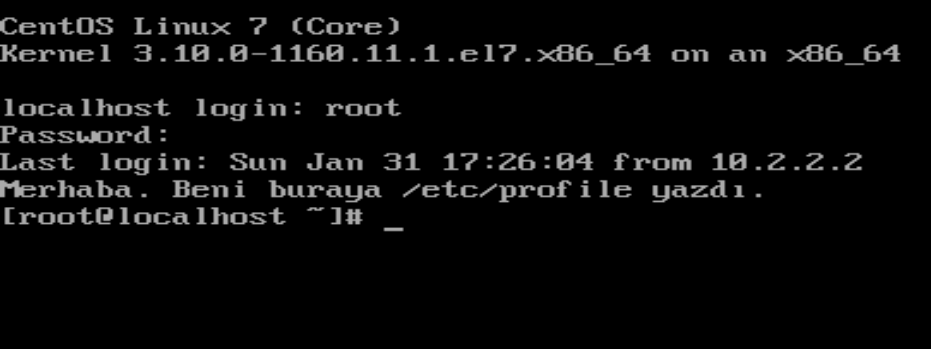
Very nice. It worked perfectly. This is because it was a "login shell." A shell where we can log in, asking for a username-password combination. Similarly, we will see this message when we SSH.
So, what happens when we start new bash shells? The new bash shells we start will not be login shells, so they will not execute this file, and the result will be as shown below:

As you can see, under our login shell with PID 1451, we started three more bash shells. However, we didn't see our message in any of these sessions.
If you want to better understand the difference between login shell and non-login shell, this link may be helpful.
What is the /etc/bashrc File?
As you remember, the profile file had directed us to this file for functions and aliases. Let's take a look at its content:
[root@localhost ~]# cat /etc/bashrc
# /etc/bashrc

# System wide functions and aliases
# Environment stuff goes in /etc/profile

# It's NOT a good idea to change this file unless you know what you
# are doing. It's much better to create a custom.sh shell script in
# /etc/profile.d/ to make custom changes to your environment, as this
# will prevent the need for merging in future updates.

# are we an interactive shell?
if [ "$PS1" ]; then
  if [ -z "$PROMPT_COMMAND" ]; then
    case $TERM in
    xterm*|vte*)
      if [ -e /etc/sysconfig/bash-prompt-xterm ]; then
          PROMPT_COMMAND=/etc/sysconfig/bash-prompt-xterm
      elif [ "${VTE_VERSION:-0}" -ge 3405 ]; then
          PROMPT_COMMAND="__vte_prompt_command"
      else
          PROMPT_COMMAND='printf "\033]0;%s@%s:%s\007" "${USER}" "${HOSTNAME%%.*}" "${PWD/#$HOME/~}"'
      fi
      ;;
    screen*)
      if [ -e /etc/sysconfig/bash-prompt-screen ]; then
          PROMPT_COMMAND=/etc/sysconfig/bash-prompt-screen
      else
          PROMPT_COMMAND='printf "\033k%s@%s:%s\033\\" "${USER}" "${HOSTNAME%%.*}" "${PWD/#$HOME/~}"'
      fi
      ;;
    *)
      [ -e /etc/sysconfig/bash-prompt-default ] && PROMPT_COMMAND=/etc/sysconfig/bash-prompt-default
      ;;
    esac
  fi
  # Turn on parallel history
  shopt -s histappend
  history -a
  # Turn on checkwinsize
  shopt -s checkwinsize
  [ "$PS1" = "\\s-\\v\\\$ " ] && PS1="[\u@\h \W]\\$ "
  # You might want to have e.g. tty in prompt (e.g. more virtual machines)
  # and console windows
  # If you want to do so, just add e.g.
  # if [ "$PS1" ]; then
  #   PS1="[\u@\h:\l \W]\\$ "
  # fi
  # to your custom modification shell script in /etc/profile.d/ directory
fi

if ! shopt -q login_shell ; then # We're not a login shell
    # Need to redefine pathmunge, it get's undefined at the end of /etc/profile
    pathmunge () {
        case ":${PATH}:" in
            *:"$1":*)
                ;;
            *)
                if [ "$2" = "after" ] ; then
                    PATH=$PATH:$1
                else
                    PATH=$1:$PATH
                fi
        esac
    }

    # By default, we want umask to get set. This sets it for non-login shell.
    # Current threshold for system reserved uid/gids is 200
    # You could check uidgid reservation validity in
    # /usr/share/doc/setup-*/uidgid file
    if [ $UID -gt 199 ] && [ "`/usr/bin/id -gn`" = "`/usr/bin/id -un`" ]; then
       umask 002
    else
       umask 022
    fi

    SHELL=/bin/bash
    # Only display echos from profile.d scripts if we are no login shell
    # and interactive - otherwise just process them to set envvars
    for i in /etc/profile.d/*.sh; do
        if [ -r "$i" ]; then
            if [ "$PS1" ]; then
                . "$i"
            else
                . "$i" >/dev/null
            fi
        fi
    done

    unset i
    unset -f pathmunge
fi
# vim:ts=4:sw=4

alias pro='. /root/proxy.sh'
We see the following:
- System-wide functions and aliases are found here.
- It is specified that tasks related to environment variables should go to /etc/profile.
- Again, the warning is given: if possible, don't touch it, and make your settings in new scripts under /etc/profile.d/.
- Some settings related to the shell prompt have been made.
- There are assignments for PATH and umask again. Because we made these settings in /etc/profile with login shells, in non-login shells, these settings will apply instead.
- At the bottom, there is an alias for the script I use to change the proxy. This way, whenever I type "pro," bash will run my prepared proxy script.
What are .bash_profile and .bashrc Files?
When a user logs in, one of these files is executed to prepare the user's environment.
The ".bash_profile" file runs in login shells, while the ".bashrc" file runs in non-login shells. Both of these files are found in the user's home directory.
Contents of .bash_profile File
# .bash_profile

# Get the aliases and functions
if [ -f ~/.bashrc ]; then
        . ~/.bashrc
fi

# User specific environment and startup programs

PATH=$PATH:$HOME/bin

export PATH

export GPG_TTY=$(tty)
To ensure that aliases and functions are available when we log in, the existence of the ".bashrc" file has been checked. Afterward, this script is executed to apply within this shell. This is the point of the first dot.
Since it is expected that each user's home directory is different, the "bin" directory, which is likely to be found under the user's home directory, has been added to the PATH variable here. If we had made this setting under "/etc/profile," all users would see the same home directory in their path.
Finally, to make verified commits on GitHub, I have set the "GPG_TTY" variable.
Contents of .bashrc File
# .bashrc

# User specific aliases and functions

alias rm='rm -i'
alias cp='cp -i'
alias mv='mv -i'


# Source global definitions
if [ -f /etc/bashrc ]; then
        . /etc/bashrc
fi
We see 3 defined aliases. The "rm", "cp", and "mv" programs are all started with the "-i" parameter by default. This is the issue, friends. "Dude, RHEL and CentOS ask if you want to delete before actually deleting. Other distributions don't. It's a distro difference." Before saying that, it's useful to check the default aliases that are defined. This distribution defines these aliases inside this file. Otherwise, rm is still the same rm. Nothing has changed.
We can also see that this file calls the "/etc/bashrc" file. These links are very important. We get everything globally, then make personal changes on top. If we don't pull in the global settings, our shell won't work properly.
What is the .bash_login File?
When we log in, the profile files were executed. "/etc/profile" is for the system-wide, "~/.bash_profile" is for the user-specific. The ".bash_login" file is a script that is executed when the ".bash_profile" file is not found. It contains the definitions to be made and programs to be executed when the user logs in. Most likely, you don't have such a file on your system. Instead, ".bash_profile" has been created.
What is the .profile File?
This is executed when both ".bash_profile" and ".bash_login" files are missing. Its purpose is the same. This file probably doesn't exist on your system either.
Let's Personalize Our Shell a Bit
We want our system to greet us when we log in. This should apply only to our user.
In this case, we will stay away from the files under "/etc". The settings in those files apply system-wide. We want this greeting to happen when we log in. The file we'll be concerned with is "~/.bash_profile":
# .bash_profile

# Get the aliases and functions
if [ -f ~/.bashrc ]; then
        . ~/.bashrc
fi

# User specific environment and startup programs

PATH=$PATH:$HOME/bin

export PATH

export GPG_TTY=$(tty)

#Karşılama kısmımız burada başlıyor:

echo Hoş geldin $USER, $HOSTNAME cihazına bağlandın.
echo Bugün: $(date)
echo "Kullandığın DNS'ler:"
cat /etc/resolv.conf | grep nameserver | cut -d " " -f 2
"Here's where our greeting part begins:" Below this line, I've written and saved my code. On the next login, the situation turns into this:
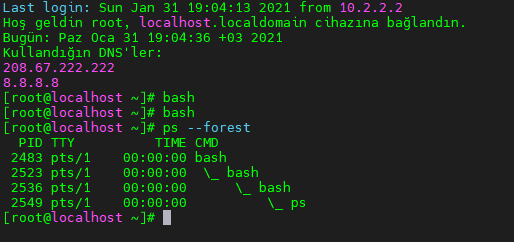
As you can see, we cannot see our greeting message in newly opened shells. This is because these shells are not login shells.
Defining Aliases under .bashrc
Let's define an alias and try to use it. It won't work. I'll say that from the start.
We define our aliases under ".bashrc":
# .bashrc

# User specific aliases and functions

alias rm='rm -i'
alias cp='cp -i'
alias mv='mv -i'

#Buraya yeni bir alias tanımlıyorum:
alias ls='ls -alhi'

# Source global definitions
if [ -f /etc/bashrc ]; then
        . /etc/bashrc
fi
"I'm defining a new alias here:" Below this line, I've defined an alias for ls.
Now, let's check the output and the screenshot below:
[root@localhost ~]# type ls
ls `ls --color=auto' için takma addır
[root@localhost ~]# ls
bashscript  degiskenler.sh  projeler  proxy.sh
[root@localhost ~]# source .bashrc
[root@localhost ~]# type ls
ls `ls -alhi' için takma addır
[root@localhost ~]# ls
toplam 72K
33582145 dr-xr-x---.  7 root root 4,0K Oca 31 19:14 .
      64 dr-xr-xr-x. 17 root root  224 Oca 26 14:59 ..
33582149 -rw-------.  1 root root  20K Oca 31 19:15 .bash_history
33582196 -rw-r--r--.  1 root root   17 Ara 16 21:08 .bash_logout
34705792 -rw-r--r--.  1 root root  200 Oca 31 19:13 .bash_profile
33582201 -rw-r--r--.  1 root root  236 Oca 31 19:14 .bashrc
  775334 drwxr-xr-x.  2 root root   88 Oca 22 22:06 bashscript
34022782 -rw-r--r--.  1 root root  100 Ara 29  2013 .cshrc
33582200 -rwxr--r--.  1 root root   70 Ara 16 21:41 degiskenler.sh
33582202 -rw-r--r--.  1 root root  154 Oca 30 17:43 .gitconfig
33865371 -rw-------.  1 root root   71 Oca 30 18:16 .git-credentials
50671788 drwx------.  3 root root  257 Oca 30 18:16 .gnupg
33582199 -rw-------.  1 root root   86 Oca 29 14:17 .lesshst
33987585 -rw-------.  1 root root  476 Ara  5 16:27 .mysql_history
51139467 drwxr-----.  3 root root   19 Ara  5 16:05 .pki
33582188 drwxr-xr-x.  5 root root   82 Oca 30 17:46 projeler
33627844 -rwxr--r--.  1 root root  509 Oca 29 13:20 proxy.sh
34705992 -rw-------.  1 root root   44 Oca 29 16:48 .python_history
33582197 drwx------.  2 root root   57 Oca 26 03:14 .ssh
34022783 -rw-r--r--.  1 root root  129 Ara 29  2013 .tcshrc

- We asked, "What is ls?" The answer was that it's an alias for "ls --color=auto." This alias enables the ls program to run in color on the system. Otherwise, directories would be blue or something like that, but that's not the case. Every time we run "ls," it behaves this way, just like the "rm -i" example.
- I run ls. It gives us the usual ls output. However, I defined an alias under ".bashrc." Why isn't my alias appearing? Why didn't it run with the parameters I specified? Because these configuration files are executed when bash is first started. It's meaningless to change the configuration of a program that is already running, because bash has already read and finished these files. So, what will happen when we make changes?
- You might hear "Close and reopen" or "Log out and log back in." There might be places where that's necessary, but this isn't one of those times. Here, we use the "source" command. The purpose of the "source" command is to read the settings from a file into "the shell you're currently in." It updates your shell using the settings in the script you provide. Instead, we could also use ". .bashrc."
- The "type" command shows us our alias.
- "ls" is running as we defined in the alias, "ls -alhi."